Google Merchant Center India: A Setup Guide for Online Stores

Google Merchant Center is the free Google tool where online sellers in India upload product information, such as titles, prices, images and stock status, so those products can appear across Google: in the Shopping tab, in image results, on YouTube and in Shopping ads. Setting it up means creating an account, verifying your website, adding shipping and return details, and connecting a product feed from your store. Once products are approved, they can show in free listings straight away, and you can link the account to Google Ads when you are ready to advertise. This guide explains each step for Indian stores. For paid campaigns built on your feed, see our ecommerce Google Ads in Coimbatore service.
What is Google Merchant Center used for?
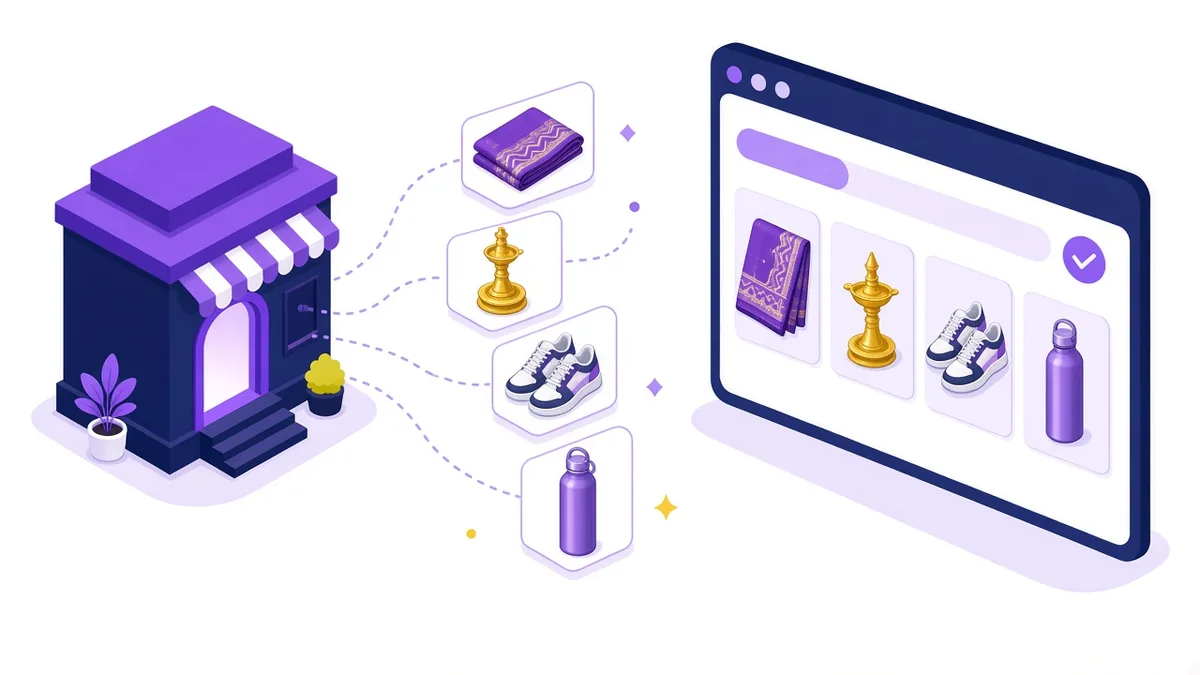
Think of Merchant Center as the bridge between your product catalogue and Google's shopping surfaces. It is used to:
- Show products in free listings on the Shopping tab and other Google surfaces.
- Supply product data to Shopping and Performance Max campaigns in Google Ads.
- Spot problems with your product information, such as missing images or mismatched prices.
- Display store details like shipping and return policies to shoppers.
Without Merchant Center, a store can still run text search ads, but it cannot run product ads with images and prices.
Is it free?

Yes. Creating an account, uploading products and appearing in free listings cost nothing. You only pay if you choose to run ads through Google Ads, where clicks on Shopping or Performance Max ads are billed from your ad budget.
Before you sign up: what your store needs
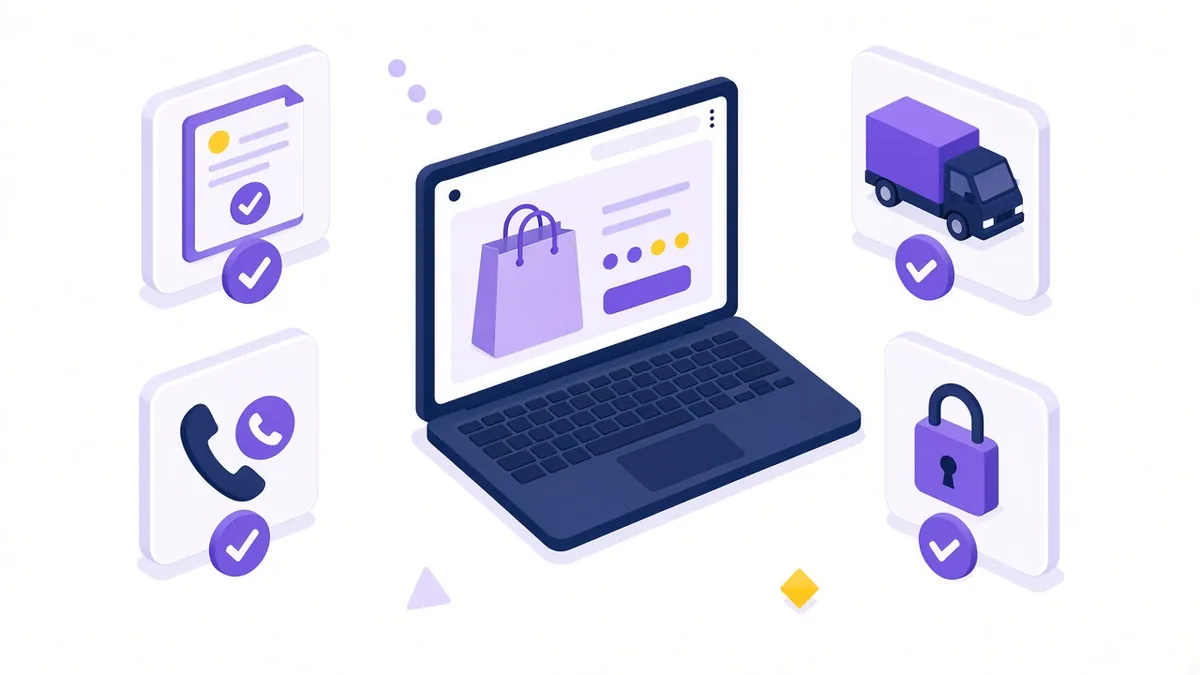
Google reviews stores for trust and accuracy. Before creating the account, make sure your website has:
- A working checkout or a clear way to buy, with prices in Indian rupees.
- A visible contact page with a phone number, email or address.
- A written return and refund policy.
- Shipping information: where you deliver, how long it takes and what it costs.
- Secure HTTPS across the site.
- Product pages where the price, stock status and details match what you will send in the feed.
Missing policies are among the most common reasons new accounts struggle with approval, so it is worth fixing them first.
Setting up the account and verifying your website

- Go to Google Merchant Center and sign in with the Google account you want to own the business data. Use a business account, not a personal one that might leave with an employee.
- Enter your business name, country (India) and website.
- Verify and claim your website. Common methods include adding an HTML tag, uploading a file, or using Google Analytics, Google Tag Manager or your platform's built-in connection.
- Add your shipping settings: delivery areas, times and costs. You can set different rules for local delivery around Coimbatore and for the rest of India.
- Add your return policy.
- Complete business details such as your phone number and customer service contact.
Adding products: feed options for Shopify, WooCommerce and others
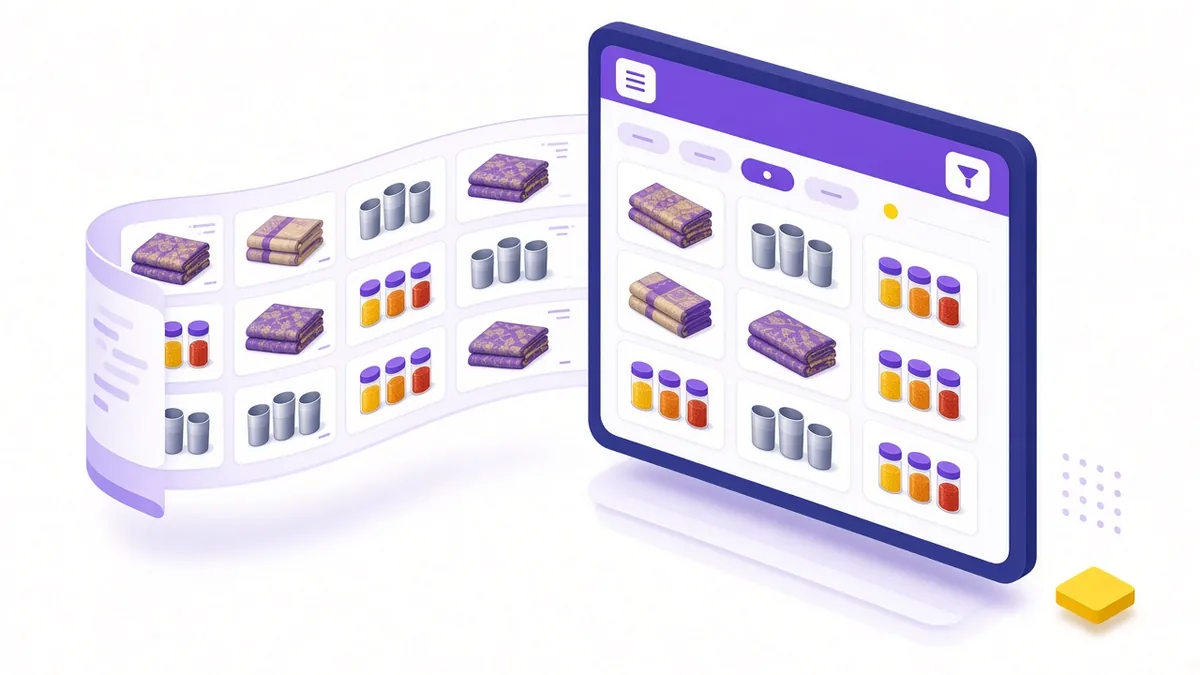
A product feed is a structured list of your products. You can supply it in several ways:
- Shopify: the Google & YouTube app connects your store and syncs products automatically.
- WooCommerce: Google's official extension for WooCommerce syncs products and can also help with tags.
- Google Sheets: suitable for small catalogues; Google provides a template.
- Scheduled fetch: your platform produces a feed file at a URL, and Merchant Center fetches it regularly.
- Automatic discovery: Google can read structured data from your product pages if your site supports it.
Whichever route you use, these attributes matter most: a unique ID, a clear title, description, product page link, main image link, price, availability, brand and condition. Product identifiers such as GTIN (barcode numbers) should be included when your products have them.
Writing product titles that sell
Titles carry a lot of weight in matching your product to searches. Put the most important words first: brand, product type and key attributes such as size, colour or material. For example, "Cotton Kurta for Women, Indigo Block Print, Size M" says more than "Product 2041".
Example (illustrative, not a client result): A Coimbatore store selling handloom sarees lists products with titles like "Saree 12". After rewriting titles to include fabric, weave, colour and occasion, and replacing studio images that had text overlays with clean product photos, the feed passes review more smoothly and each listing describes what shoppers actually search for. Sales will still hinge on how the prices compare with rival sellers.
Common disapprovals and how to fix them
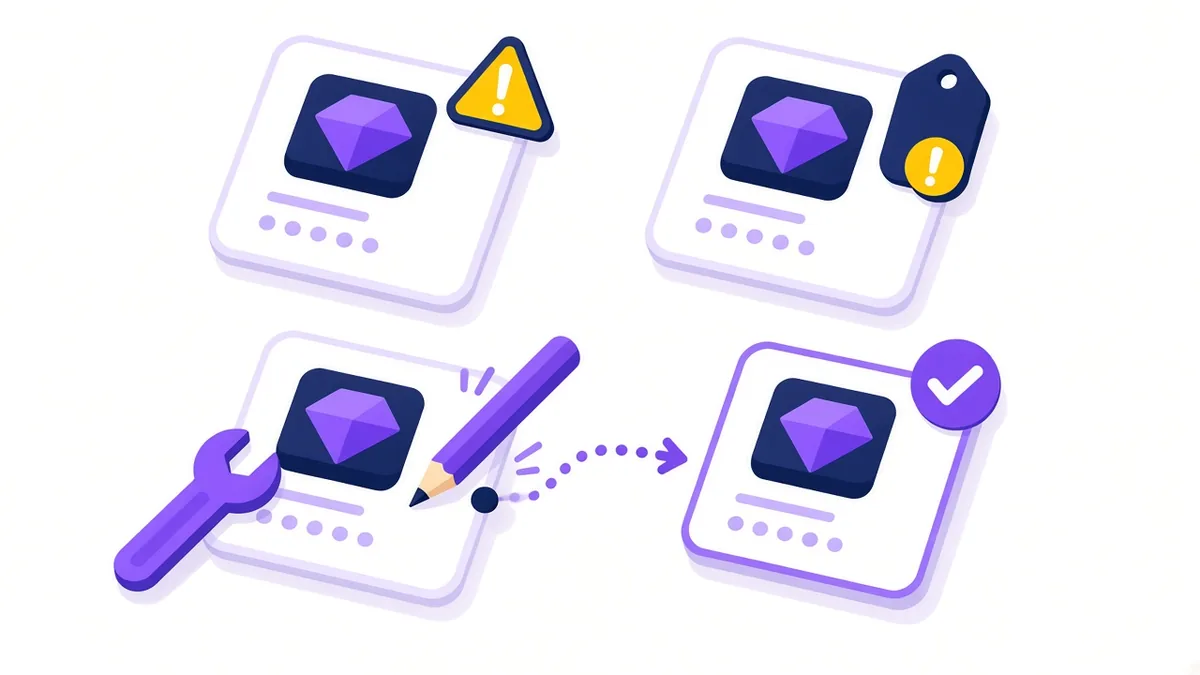
Merchant Center's Diagnostics or Needs attention section lists problems. Frequent issues for Indian stores include:
- Price mismatch: the feed price differs from the product page, often after a sale or update. Sync more often or fix the page.
- Missing or unclear return policy.
- Image problems: watermarks, promotional text, borders or placeholder images.
- Availability mismatch: listed as in stock but showing "sold out" on the site.
- Misrepresentation warnings: usually caused by missing contact details, unclear business identity or unrealistic claims.
- Restricted products: some categories, such as certain health products, have extra rules.
Fix the root cause on your website first, then update the feed and request a review where needed.
Linking Merchant Center to Google Ads
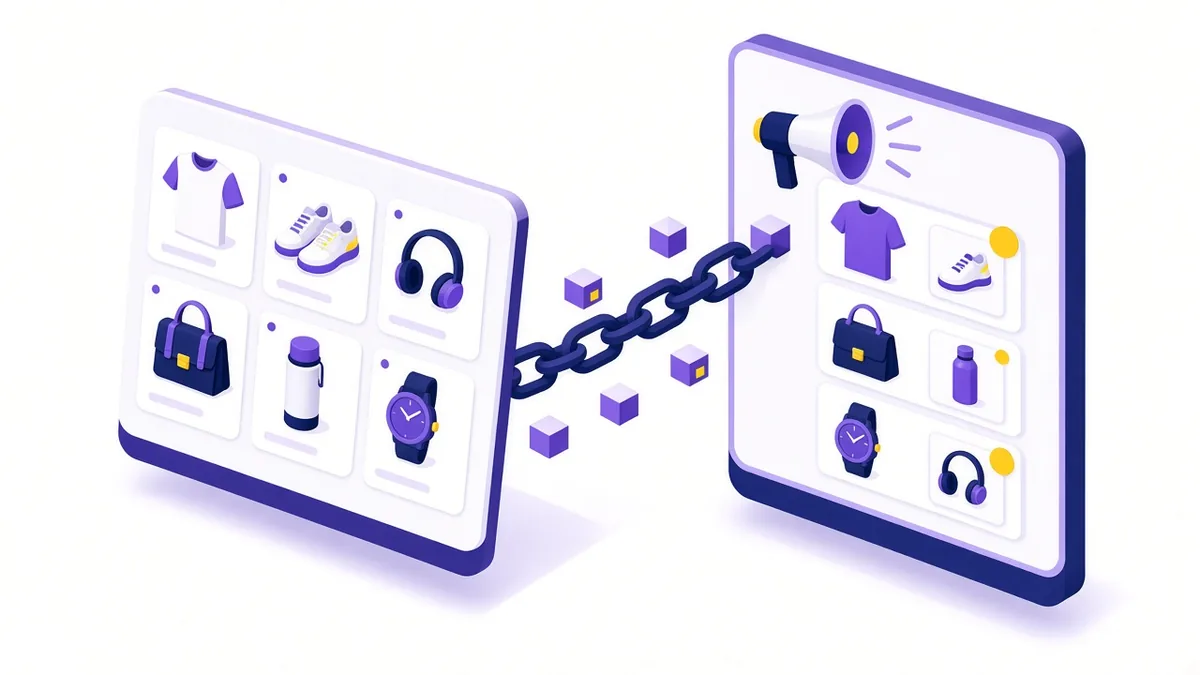
When you are ready to advertise, link the two accounts from Merchant Center settings and approve the link in Google Ads. You can then run Standard Shopping campaigns, which give you more control over product groups, or Performance Max, which uses automation across Google's channels. Make sure purchase tracking is working before you spend, so Google Ads can see which products sell. Budget questions are covered separately in Google Ads cost in India, including daily and monthly limits.
If you also sell through Instagram and Facebook, a similar catalogue approach is used for Meta ads for ecommerce, and the same clean product data helps both.
Frequently asked questions

Can a store without its own website use Merchant Center?
Merchant Center is built around a verified website where shoppers can buy or learn about products. A store that sells only on marketplaces or social media generally needs its own product pages before it can make good use of it.
How long does product approval usually take?
Many products are reviewed within a few days, though new accounts can take longer while Google checks the store. Keep your policies and product pages complete to avoid delays.
Do I need GTIN barcodes for handmade or own-brand products?
Not always. Products without a manufacturer barcode, such as handmade or custom items, can be submitted without GTIN when that is accurate. Provide brand and other identifiers where available.
How often should my product feed update?
As often as your prices and stock change. Daily updates suit most small stores; stores with frequent price changes or flash sales may need automatic syncing through their platform.
Can I show products only to buyers in Tamil Nadu?
You can limit shipping settings and, in Google Ads, target campaigns by location. Free listings follow your shipping settings, so set delivery areas accurately.
Ready to put your products on Google?

If you want help moving from a clean feed to profitable Shopping campaigns, visit our ecommerce Google Ads in Coimbatore page, call +91 93429 52626 or email info@xtrodinry.com.
About the author: Karthik N, Founder of Xtrodinry in Coimbatore and SEO strategist. Connect on LinkedIn · About Xtrodinry
Xtrodinry · 4/175/A, Vijayalakshmi Nagar, Panappatti, Coimbatore, Tamil Nadu 641201 · +91 93429 52626 · info@xtrodinry.com