

Meta Catalogue Ads: A Setup Guide for Online Stores

Meta catalogue ads are Facebook and Instagram ads that pull product images, names and prices straight from a product catalogue, so each shopper can see items relevant to them instead of one fixed poster. To run them you need three things in place: a catalogue in Commerce Manager, a website pixel (ideally with Conversions API) that reports which product IDs people view and buy, and a Sales campaign that uses the catalogue. Get the IDs to match across all three and the rest becomes routine.
This guide covers each step in order, from creating the catalogue to fixing the errors that usually block a launch. For how catalogue ads fit into a full store strategy with budgets, festival planning and break-even maths, see our page on Meta ads for ecommerce in Coimbatore.
What catalogue ads are

Older guides call them dynamic product ads. Meta now groups them under Advantage+ catalogue ads. The idea has stayed the same:
- You upload products once, with their details.
- Meta builds ads on the fly, picking products for each person based on what they viewed, what similar shoppers bought, or both.
- When a price or stock status changes in your feed, the ads update with it.
Two common uses:
- Retargeting. Show the exact saree, kurta or mixer-grinder someone viewed last week but did not buy.
- Broad prospecting. Let Meta show relevant products from your range to new people who have never visited your store.
Example (illustrative, not a client result): a Tiruppur kidswear brand with 300 products builds one catalogue, then runs one campaign that reminds recent visitors about items they browsed and a second that shows best-sellers to new parents across Tamil Nadu. Both campaigns use the same catalogue without designing 300 separate ads.
Creating a catalogue in Commerce Manager

Open Commerce Manager from Meta Business Suite or business.facebook.com/commerce and choose to add a catalogue. Pick the e-commerce type, select the business portfolio that owns it, then choose how products will arrive.
| Upload method | Suits | Watch out for |
|---|---|---|
| Partner platform (Shopify, WooCommerce, BigCommerce and similar) | Most small Indian stores | Sync errors after theme or app changes |
| Scheduled data feed (CSV, TSV, XML or Google Sheet URL) | Custom-built sites, larger ranges | The feed URL must stay public and current |
| Manual form | Very small ranges, under about 20 products | Prices and stock drift out of date quickly |
| Pixel-based import | Sites with clean product markup | Needs well-structured product data on each page |
For a store on Shopify or WooCommerce, the official Meta app or plugin usually creates the catalogue and keeps it synced. Confirm afterwards that the catalogue belongs to your own business portfolio, not to a freelancer's.
Required and useful product fields
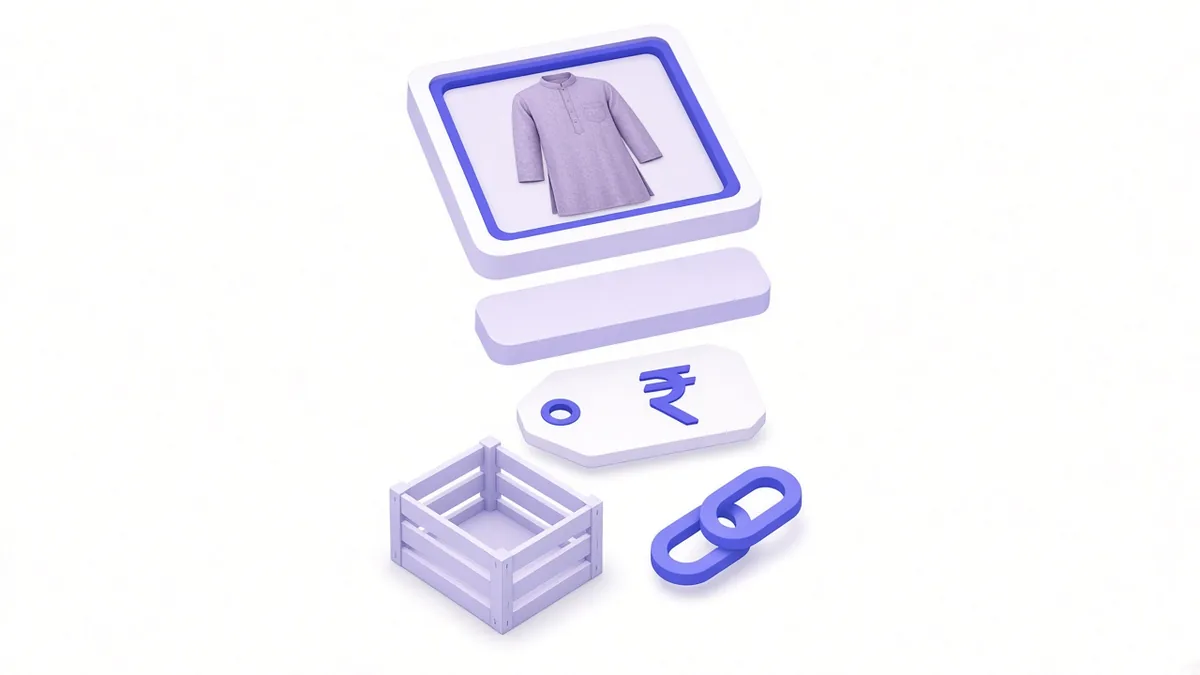
Meta's catalogue specifications list the fields it needs. At the time of writing, the required set for e-commerce items was:
- id: a unique identifier, ideally the same SKU your website uses
- title: a clear product name, without shouting in capitals
- description: plain text describing the item
- availability: in stock, out of stock and similar values
- condition: new, refurbished or used
- price: number plus currency code, for example "1499.00 INR"
- link: the product page URL
- image_link: the main product image URL
- brand: your brand or the manufacturer
Fields worth adding once the basics work:
- sale_price with sale dates, for festival offers
- additional_image_link for extra angles
- item_group_id to group sizes and colours of one design
- product_type or custom labels, so you can build product sets like "Under ₹999" or "Deepavali collection"
Good images matter more than any field. Clean, well-lit product shots on simple backgrounds make carousel and collection formats look professional. Our commercial photography page explains the kind of product shoot that suits catalogues.
Connecting the pixel so products match

Catalogue ads only work well if Meta can link what happens on your website to items in the catalogue. That link is the content ID.
- Connect your pixel (or dataset) to the catalogue in Commerce Manager under the event sources settings.
- Make sure ViewContent, AddToCart and Purchase events send a
content_idsvalue. - That value must exactly match the
idfield in the catalogue. If the site sends "SKU-104" and the catalogue says "104", Meta cannot match them. - Check the match rate shown in Commerce Manager's diagnostics. Low match rates mean retargeting will show the wrong products or nothing at all.
If you have not installed the pixel yet, start with our Meta Pixel setup guide, then come back to this step. Adding Conversions API alongside the browser pixel helps keep purchase data complete when browsers block scripts.
Launching a catalogue campaign

In Ads Manager:
- Create a campaign with the Sales objective.
- Turn on the catalogue option at campaign level and choose your catalogue. The label has changed over time; look for Advantage+ catalogue ads or "Catalogue".
- Pick a product set. Start with all products, or a set such as best-sellers or a festival range.
- Choose the audience approach. Retarget people who viewed or added to cart in the last 14 to 30 days, or go broad and let Meta find new buyers.
- Choose the format. Carousel and collection are the usual picks. Add a frame or text overlay showing price or offer if it helps.
- Write the primary text using catalogue keywords such as product name and price, so each ad fills in automatically.
- Exclude recent purchasers when retargeting, so buyers are not chased for the item they just bought.
Run a small test first. Check the ad previews for odd crops, missing prices or the wrong currency before raising budget.
Fixing common catalogue errors

"Missing required field": the feed is incomplete. Commerce Manager's diagnostics list which items and which field.
Image rejected or too small: Meta's specifications set a minimum image size. Use square images of decent resolution and avoid heavy text over the product.
Price mismatch with website: the feed price and the product page price differ. Shorten the feed refresh schedule or fix caching on the site.
Items rejected for policy: some categories, such as certain health products, adult items or weapons, are restricted by Meta's commerce and advertising policies. Read the rejection reason and the policy it names.
Duplicate IDs: two products share an ID, often after importing from two sources. Keep one source of truth.
Low content ID match rate: see the pixel section above; it is almost always an ID format difference.
If you also sell through Google, many of the same feed habits apply. Our Google Merchant Center India guide covers the Google side.
Frequently asked questions

How many products can one Meta catalogue hold?
Catalogues are built for large ranges, from a handful of items to many thousands. Very small catalogues give Meta little to choose from, so a store with only three products may do better with standard image or video ads.
Can one catalogue serve both Facebook and Instagram shopping?
Yes. A single catalogue can power ads on both platforms and, where available, shopping features on your Page and Instagram profile, as long as both accounts are connected in the same business portfolio.
How often does Meta refresh a scheduled product feed?
You set the schedule, for example hourly or daily. Pick a frequency that keeps prices and stock accurate, especially during sales when items sell out quickly.
Can I hide out-of-stock items from catalogue ads?
Set availability to out of stock in the feed and Meta stops showing those items. You can also build product sets that include only in-stock items.
Do catalogue ads need a separate creative for every product?
No. Images and details come from the feed. You can add templates, frames or a short video to the overall ad, but each product's picture is pulled automatically.
Get your catalogue launch-ready

A clean catalogue with matching IDs is the foundation of profitable store ads. Explore our Meta ads for ecommerce in Coimbatore service to see how we audit feeds and plan catalogue campaigns, or email info@xtrodinry.com with your store link for a free first look.
About the author: Karthik N, Founder of Xtrodinry in Coimbatore and SEO strategist. Connect on LinkedIn · About Xtrodinry
Xtrodinry · 4/175/A, Vijayalakshmi Nagar, Panappatti, Coimbatore, Tamil Nadu 641201 · +91 93429 52626 · info@xtrodinry.com